Guides / Videos
Add a Loom to a project
Paste a share link, pick the phase, and the recording becomes a card on the job. A project holds as many videos as you record, not one.
What you need first
- A Loom recording shared with anyone who has the link
- The video library module on for your shop
Loom is your front end: the spoken ballpark, the walk through the drawings, the proposal. By the end of this page one of those recordings will be attached to the job it belongs to, in the phase you filed it under.
Open the project and click Videos
The first card on the tab is Add video. If the job already has recordings, the card counts them in its corner.
Paste the link and pick the phase
Four phases: Ballpark, Design walkthrough, Proposal walkthrough and Other. They are the order a client watches them in and the words you use for your own recordings, and nothing about them is a stage of the job.
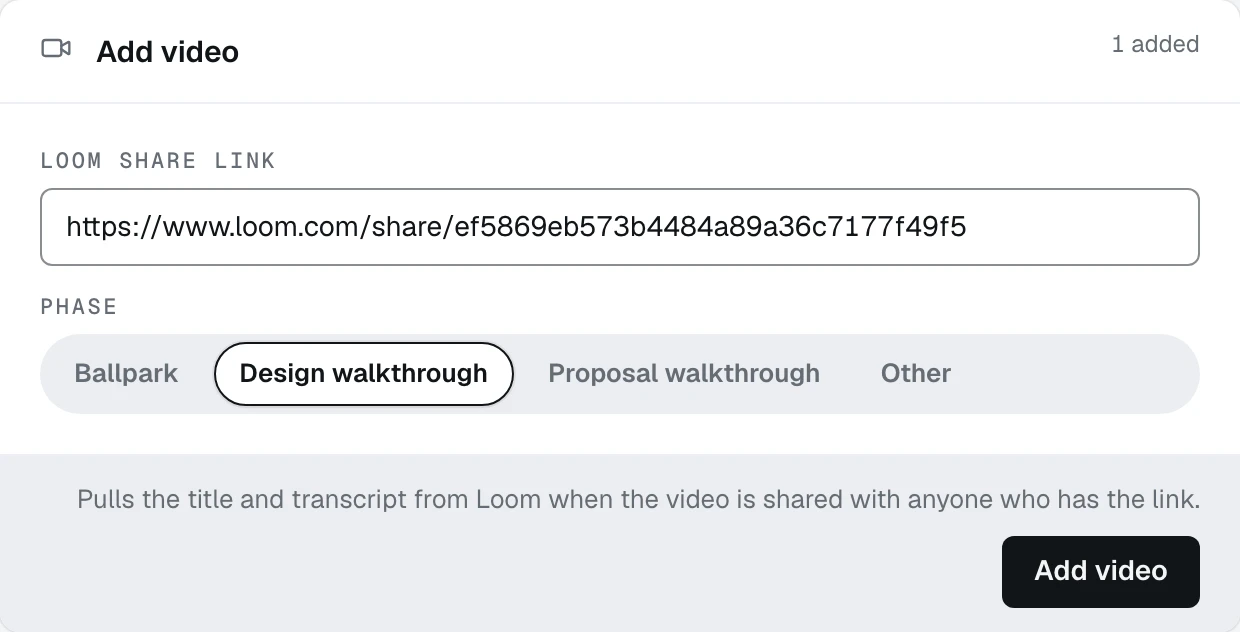
- 1Loom share link, pasted from Loom
- 2Phase, which is the order they are watched in
- 3Add video
Click Add video
The line beside the button says what it will try: "Pulls the title and transcript from Loom when the video is shared with anyone who has the link." A recording that is private to you gives neither, and the card then asks you for them rather than making them up.
Read the card that appears
The video becomes its own card carrying the phase, the title, the length, and whether a transcript arrived. Adding the first video also mints the client's walkthrough link, which is why there is no separate button for it.
Add the next one when you record it
A job holds as many videos as you record. They play in the order they were added, and removing one takes its transcript and its approved summary with it, which is why Remove asks twice.
What happens next
A video without a transcript cannot be summarised from anything. The next guide is how the transcript gets there, fetched or pasted.