Guides / Settings and team
Modules
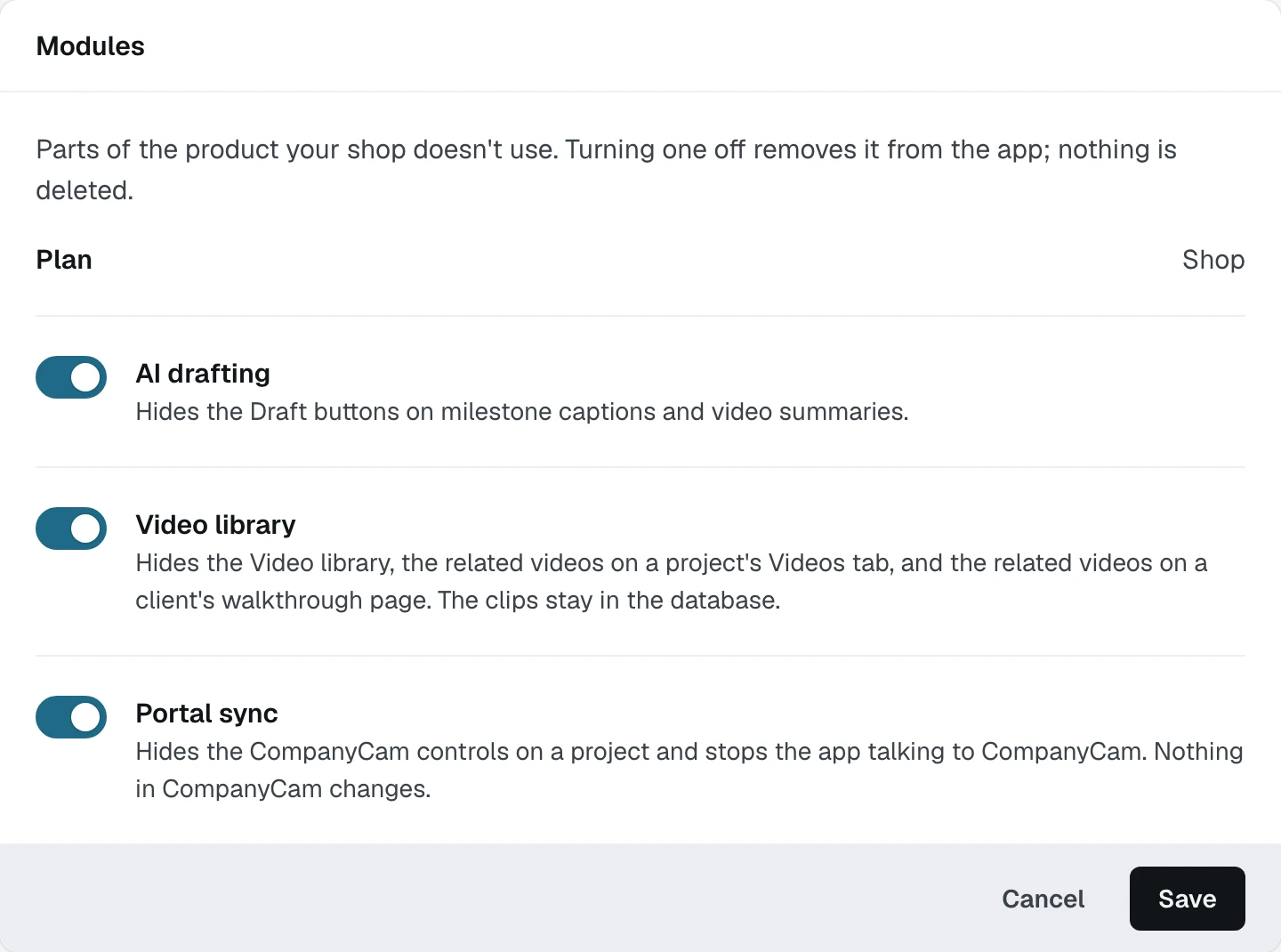
Three switches for the parts of the product a shop may not use. Turning one off removes it from the app and deletes nothing.
What you need first
- The owner role. Modules are shop settings
Not every shop records video and not every shop uses a photo portal. By the end of this page you will know what each switch hides, what it leaves alone, and why the plan is printed above them.
Open Settings, then Jobs, and click Edit on Modules
Know what AI drafting off means
The Draft buttons disappear from milestone captions and video summaries. Both still work: you write the words yourself and approve them the same way. Nothing in Casework prices with a model, so no number anywhere changes.
Know what Video library off means
The Video library goes from the sidebar, the related videos go from a project's Videos tab, and the related videos go from a client's walkthrough page. The clips stay in the database, so switching it back on brings them all back.
Know what Portal sync off means
The photo portal controls go from a project and the app stops talking to the portal. Nothing in the portal changes: your photos, your projects and your clients' access there are untouched, because Casework is a caller rather than an owner of that data.
Read the plan above the switches
The plan line is what your shop is on. The switches are what is actually turned on, and they are set to match. If a module you are paying for is off, or one you are not paying for is on, that is a conversation rather than a bug.
Change one and click Save
The card is a form like every other card in Settings: Edit, change, Save. The sidebar and the project tabs redraw straight away, because the switch is read where each of those is built rather than cached.
What happens next
The plan also decides how many people can be in the workspace. The next guide is adding one.