Guides / Proposals
A spare row
Add the line your catalogue has never had: a trip out of town, a client's own appliance panel, the lighting on this one. It prices like any other row.
What you need first
- A room on the take-off with at least one block
Not everything is a kitchen and not every job fits the sheet. By the end of this page you will have typed a one-off line straight into a block, priced it, and know where it does and does not go afterwards.
Click Add a row at the foot of the block
Every block carries Add a row under its last catalogue row. It belongs to that block and that room, so a line for the pantry does not turn up on the kitchen sheet.
Type what the row is
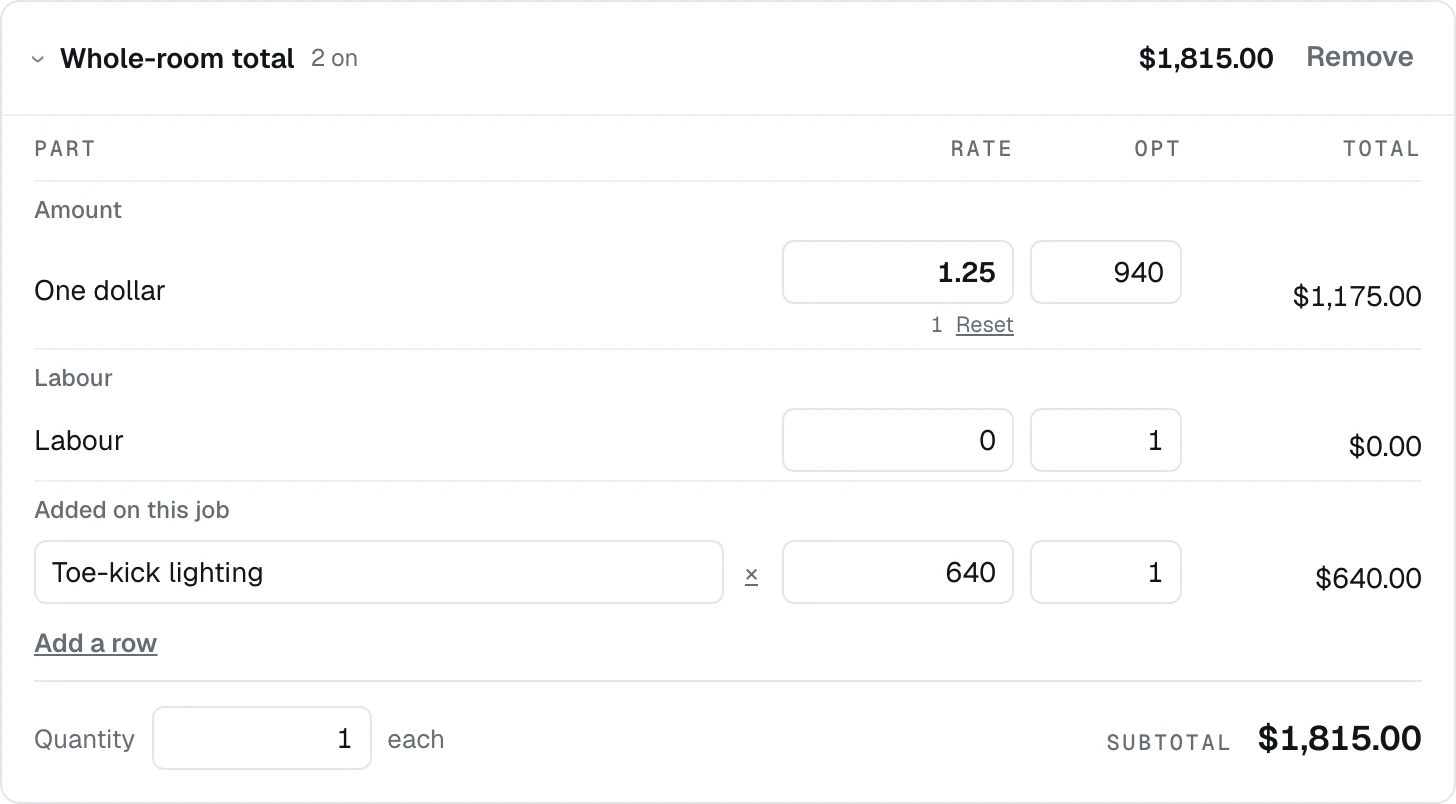
Give it a rate and an Opt
A spare row has the same two numbers as a catalogue row. The Total on the right is the rate times the Opt, and the block quantity scales it with everything else in the block.
Remove one with the cross beside its name
A spare row has a small cross next to its field. Catalogue rows do not, because switching one off is what Opt is for and deleting a part of your own sheet belongs in Settings.
Know that a spare row stays on this job
Nothing typed here is added to your catalogue. If you find yourself typing the same spare row on every job, that is a sign the row belongs in your workbook, and putting it there is an import on the Pricing tab rather than a button here.
Save, then draft
Spare rows save with the rest of the sheet. The drafted proposal prints them in place, under the catalogue rows of the block they were added to.
What happens next
Sometimes you already have the number and only want the document. The next guide is that path.