Guides / Rates
Import a workbook
Picking a file previews it and writes nothing. You see what was read, what was skipped and what the engine would still refuse on before anything is saved.
What you need first
- A filled rates workbook, under about 900KB
- Owner access to Settings, Pricing
By the end of this guide your own rates are in and the Pricing tab prices without stopping. Importing is two presses, and the first one changes nothing.
Press Import a workbook
Settings, Pricing, the Import and export card, then Import a workbook. Your file picker opens. Pick the workbook.
Read the preview
Picking previews. A panel appears headed Read from and your file's name, with the line Nothing is saved until you apply this.
Three counts across it: how many Shop rates settings were read, how many Ballpark rungs and settings, and how many Catalogue categories, blocks and rates.
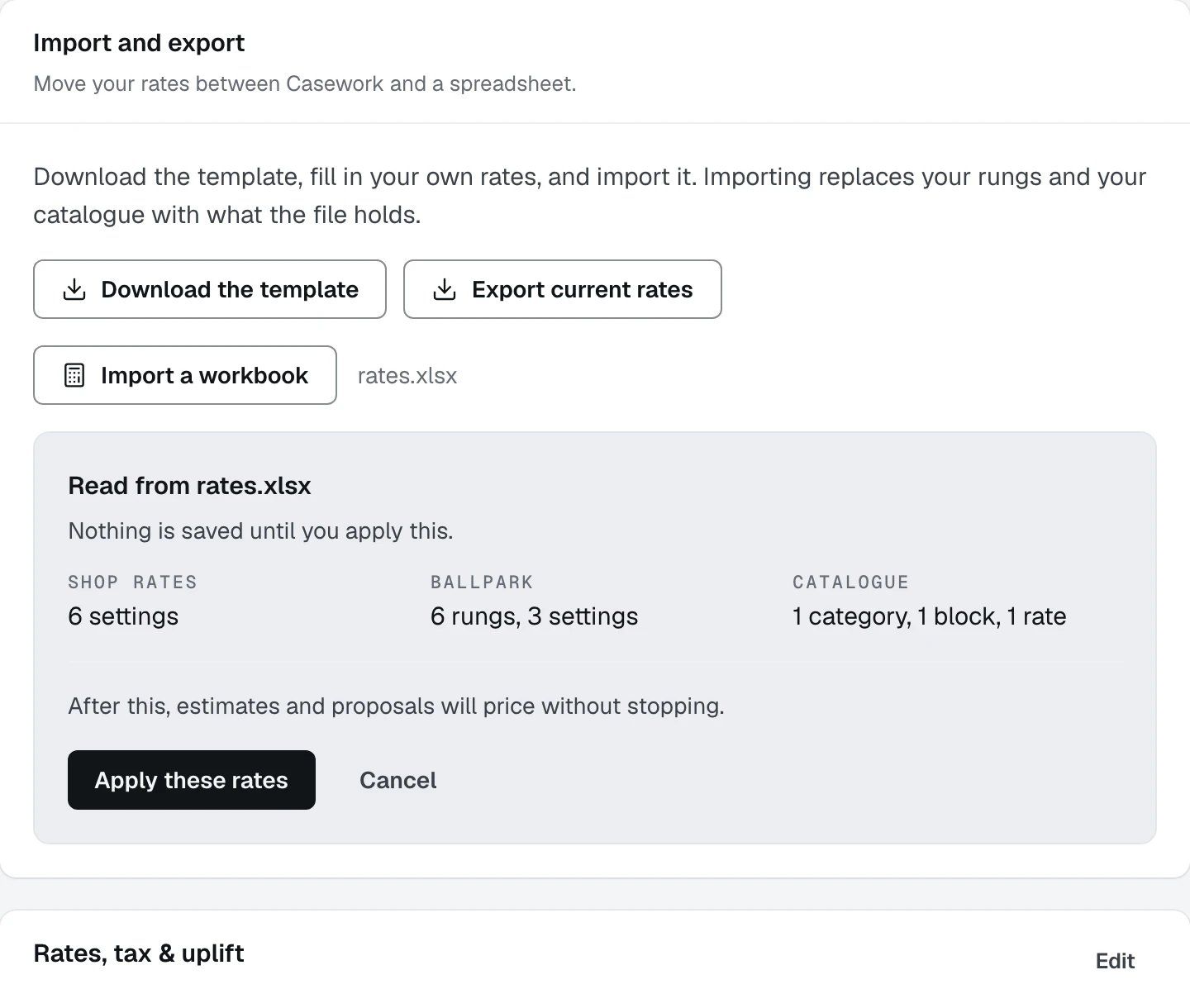
- 1The file that was read, and the promise that nothing is saved yet
- 2What came out of each of the three sheets
- 3Apply these rates is the press that writes
Read what was skipped
A row Casework could not use is listed under a warning, by sheet and row number, with the reason. The line above them says the choice: Fix them in the file and import it again, or apply this and add them in the cards below.
Only the first twelve are listed, and a count follows for the rest.
Read what would still be missing
Under that, one of two sentences. Either After this, estimates and proposals will price without stopping, or After this, the engine still refuses on however many things, each named underneath.
That second list is the same list the Setup status card at the top of the tab shows, read ahead of time.
Press Apply these rates
Apply these rates writes. Cancel throws the preview away and leaves everything where it was.
Importing replaces your rungs and your catalogue with what the file holds. It is not a merge. A rung you deleted from the spreadsheet is gone from Casework after an apply, so export first if you are unsure. See Export your rates.
Figures already on a drafted estimate do not move. The Ballpark estimate card says it plainly: changes only apply to new drafts.
What happens next
Read the rungs back on the Pricing tab and correct any of them by hand: Type your rungs by hand.